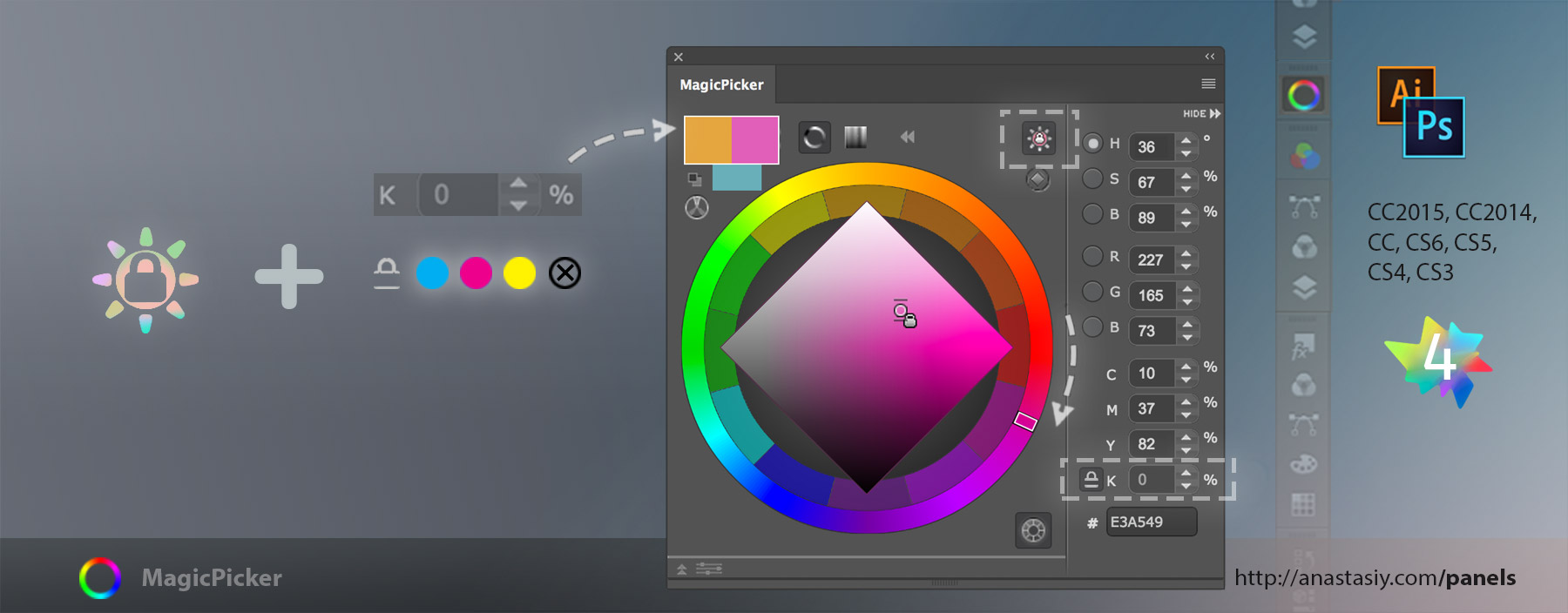
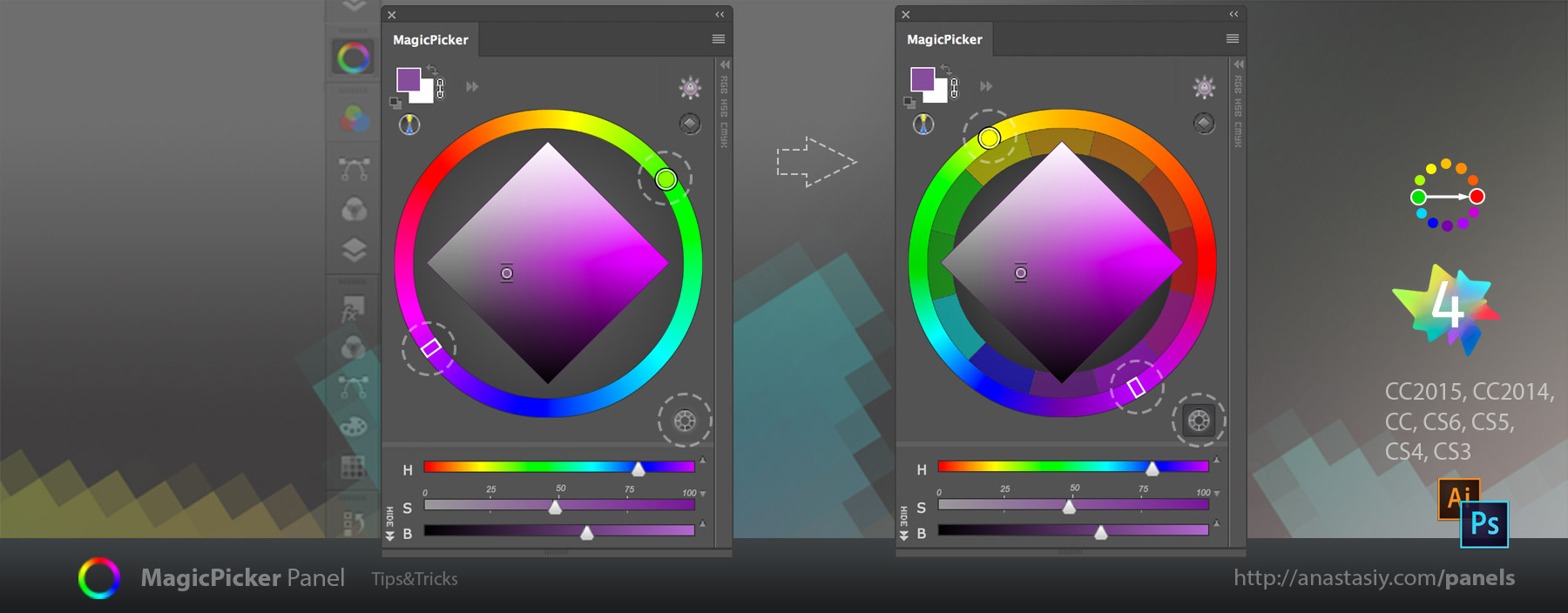
Keep colors bright or dark when rotating Hue° while saving low level of K ink of CMYK – all at once! That lets you find colors on the color wheel within the same dynamic gamut range that look bright when printed! To do that switch on both Tone Lock and K-Lock in MagicPicker – they work together very well! Then rotate Hue° on the color wheel and you will see how MagicPicker adjusts the color so it sustains same perceived brightness and the same K value!
Tone Lock and K-Lock in MagicPickae
This technique works in Adobe Illustrator & Photoshop CS6, CC, CC2014, CC2015, CS5, CS4 and CS3.
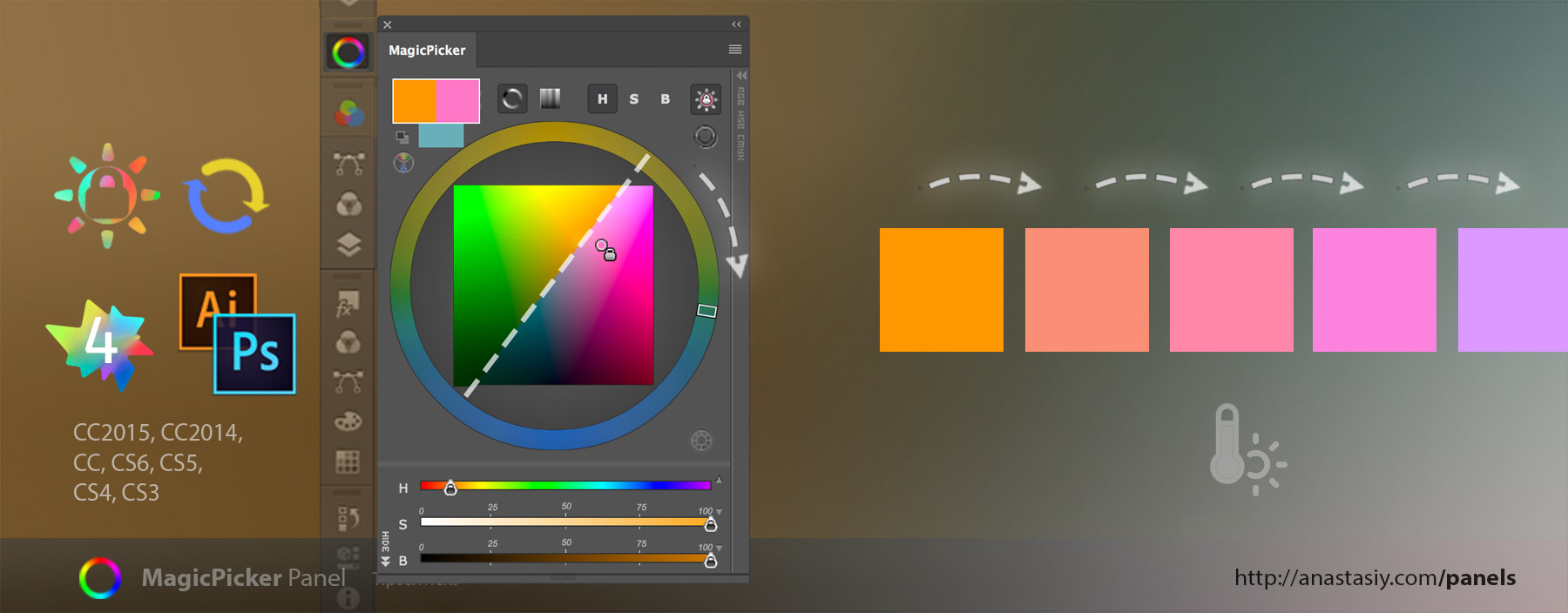
It’s easily possible with MagicPicker! In the Color Temperature Wheel mode switch on Tone Lock and start shifting the slider on the wheel. This option lets you quickly find corresponding colors having the same brightness for lights and shadows or for foreground and background. Or keep the same brightness level across the surface when editing textures.
Change color temperature while keeping color’s brightness
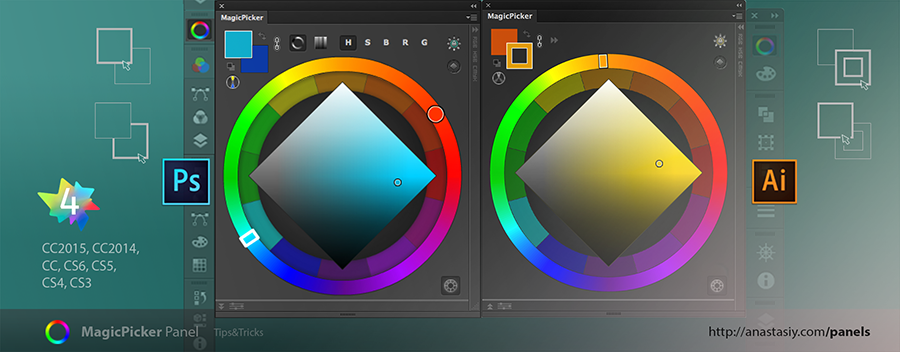
Picking foreground/background colors in Photoshop and Fill/Stroke in Illustrator
Pick foreground or background colors separately with MagicPicker! Click the appropriate color swatch on the panel to make it active in Adobe Photoshop. In Adobe Illustrator switch between Stroke and Fill colors
K-Lock lets you keep your colors bright in CMYK and decrease K level to 10% or zero in any given color! You can make colors darker or brighter while keeping value of K the same so they all come out vivid when printing. Just set the value and then click the button to lock it down. You can adjust K on the fly in that mode making colors even darker!
With MagicPicker you can pick colors on the Traditional Color Wheel – a color wheel based on 12 basic colors used in traditional painting. That allows you to pick colors having relationship based on physical pigments of the paints. For example in this color scheme complement colors red is the opposite to green and yellow is opposite to purple. This color wheel is often referred to as Itten’s Color Wheel.
MagicPicker - switch to traditional color wheel
Switch to this mode by clicking on the button to the right-bottom of the color wheel.
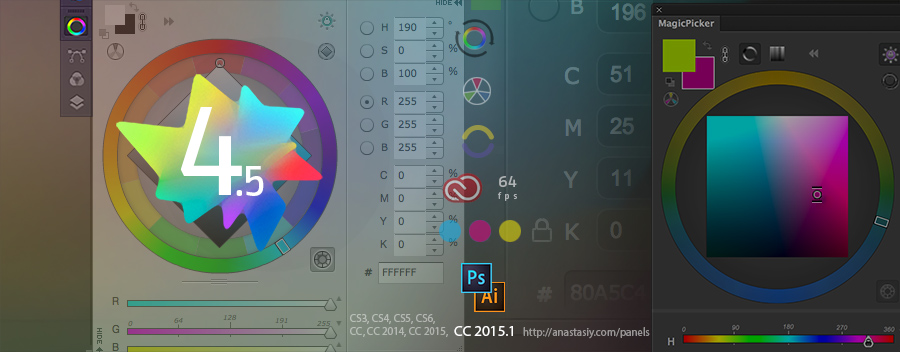
Yesterday arrived the new MagicPicker upgrade with new Photoshop CC 2015.1 support (Illustrator CC 2015.1 and 2015.2), K-Lock improvements, better support for Microsoft Surface Pro and new optimizations and bug fixes.
MagicPicker 4.5 upgrade with Photoshop CC2015.1 support
MagicPicker 4.5 still supports Photoshop and Illustrator CS3, CS4, CS5, CS5.5, CS6, CC, CC2014 and CC2015.
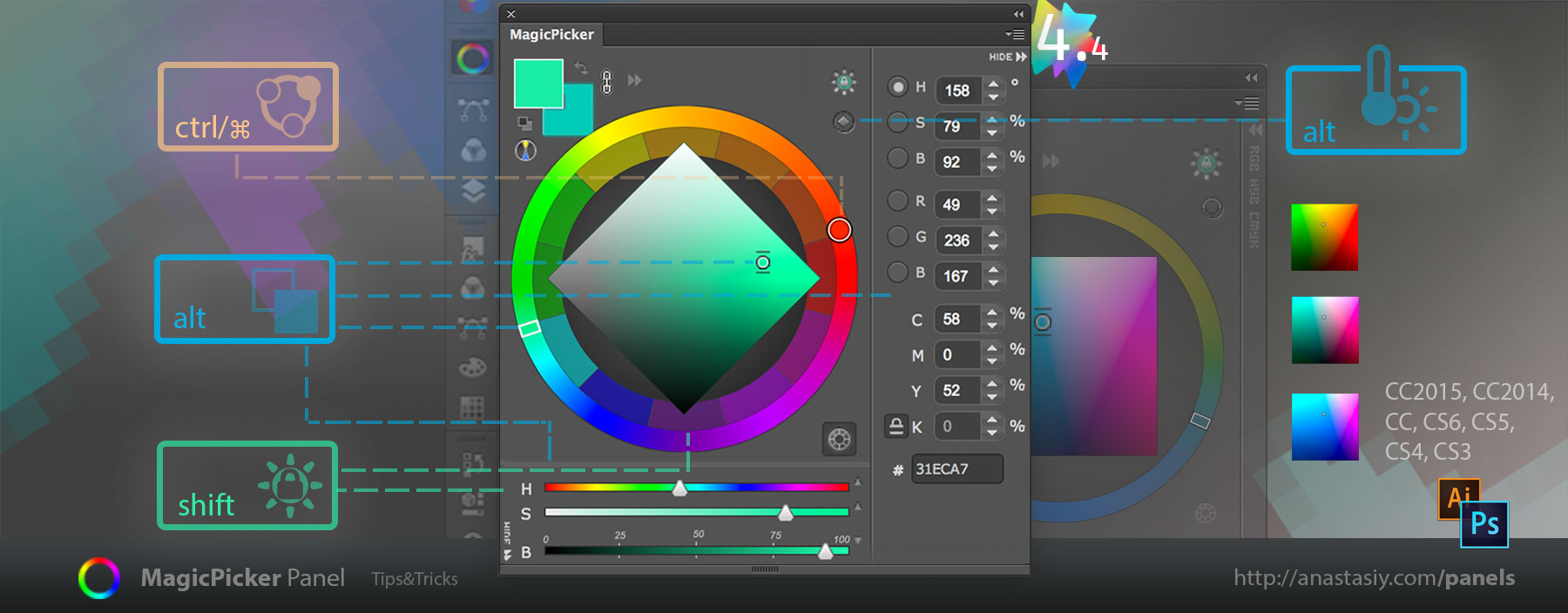
One of the biggest support cases is the knowledge of keyboard modifiers in MagicPicker. Basically it’s three of them: ALT, SHIFT and CTRL/CMD. And here they go in one place altogether!
MagicPicker keyboard shortcuts cheat sheet
Don’t forget that you can use a combination of them as well! Like Pressing ALT+SHIFT on the color wheel will change background color while keeping the color’s tone with temporary Tone Lock last the same time!
The exclusive Compact Mode of MagicPicker 4 perfectly combines with the new Big Swatches mode: keep two bold main colors visible on the screen and expand MagicPicker without a single click, just hovering your brush over the color swatches!
Preserve your screen real estate while saving clicks!
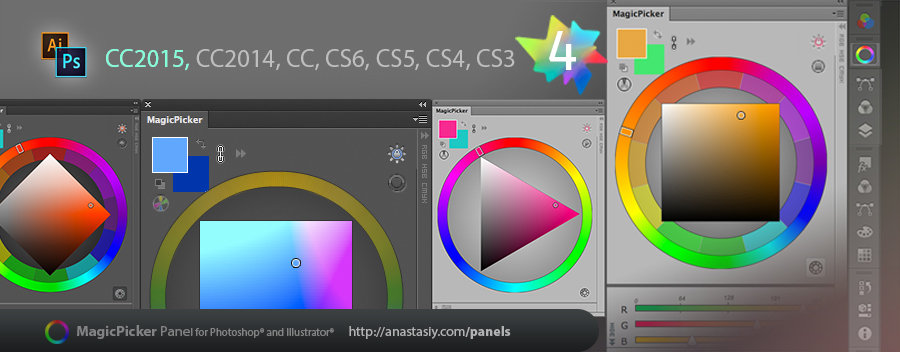
Now available for Photoshop and Illustrator CS3, CS4, CS5, CS6, CC and CC 2015.
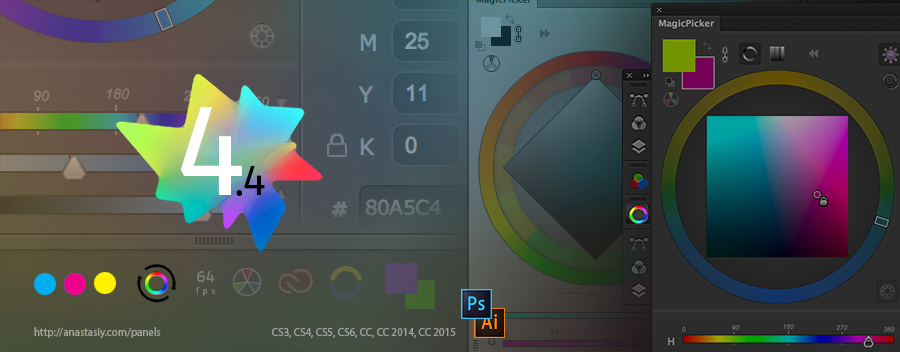
MagicPicker just updated! New K-Lock lets you lock level of the black in CMYK, Hue/Color Temperature shift for groups in Illustrator. Bug fixes, speed improvements, activation and installation improvements! All new features will be covered in the upcoming tutorials! Please stay tuned to the blog! MagicPicker v4.4 provides the same features across CS3, CS4, CS5, CS6, CC, CC2014, CC2015!
MagicPicker 4.4: K-Lock, Hue and Color Temperature Shift, new features!
Today Adobe issued an upgrade to their Creative Cloud. Namely Photoshop and Illustrator have been updated to version CC 2015. And I receive questions whether MagicPicker is compatible with the new platform. MagicPicker 4 was tested and totally works as is with the new Adobe’s products – Photoshop CC 2015 and Illustrator CC 2015. In most cases you don’t have to do anything after CC 2015 upgrade.
You don’t need to upgrade or reinstall, just please make sure you have the latest version of Adobe Extension Manager CC (you can always install it from Adobe Creative Cloud app).
MagicPicker in Photoshop CC 2015 and Illustrator CC 2015
There’s even more to it – some reported that Compact Mode didn’t work in the new CC 2014 software on selected system configurations. Seems there was a conflict that Adobe has resolved in the new versions of Photoshop/Illustrator. So if you still see your Compact Mode grayed out
or
If you face any issues with MagicPicker disappearing from the Extensions menu in new CC 2015 software – try to reinstall or update Adobe Extension Manager CC and then reinstalling MagicPicker.
Installing MagicPicker 4 with Adobe Extension Manager CC is easy and works the same on both platforms – Mac and PC (Windows):
1) Make sure your have the Adobe Extension Manager CC installed – go to your Adobe Creative Cloud, locate Adobe Extension Manager and click Install or Upgrade
2) Run Adobe Extension Manager
3) Choose File -> Install Extension
4) Locate MagicPicker4.zxp and follow the installation steps
P.S. MagicPicker is still compatible with Photoshop & Illustrator CS3, CS4, CS5, CS6, CC, CC2014.